
7 Easy Steps: How to Install IPTV on My Samsung Smart TV
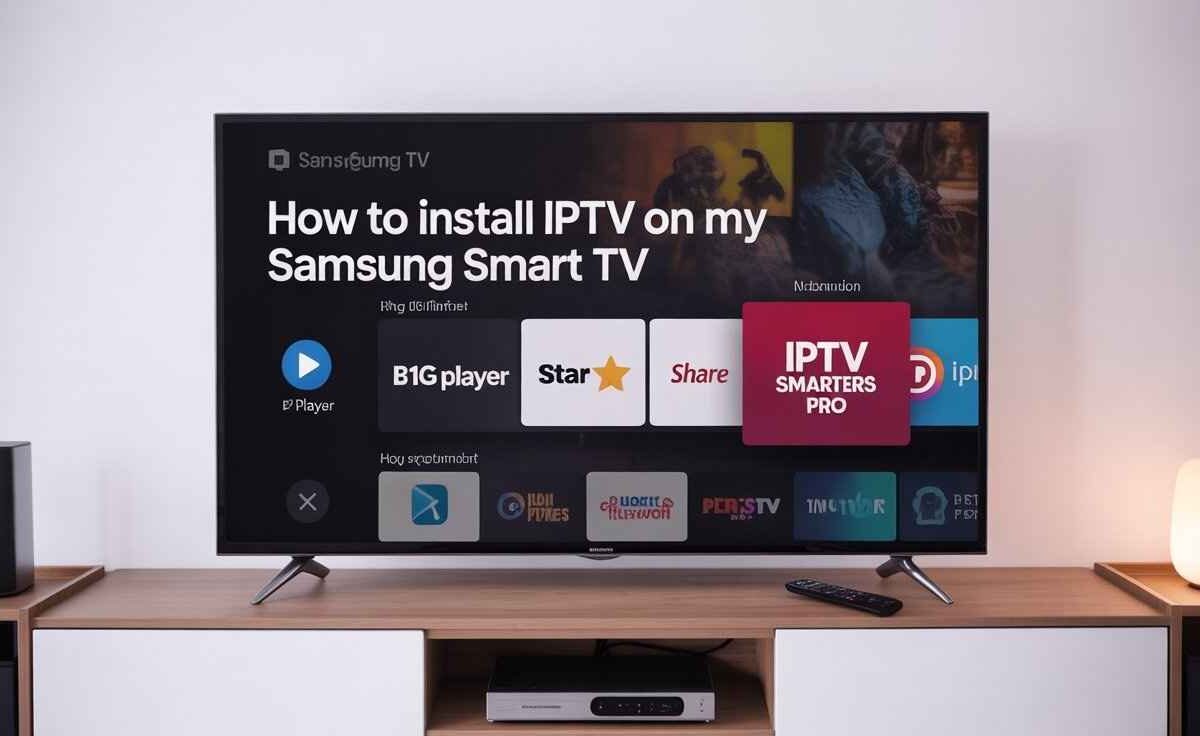
How to Install IPTV on My Samsung Smart TV: 1. Open App Store 2. Search IPTV app 3. Install 4. Launch 5. Add URL 6. Login 7. Enjoy live TV.
How to Install IPTV on My Samsung Smart TV
If you’re wondering how to install IPTV on your Samsung Smart TV, this easy guide will walk you through every step.
IPTV lets you stream live TV, sports, movies, and shows using your internet connection — no cable or satellite required.
Samsung Smart TVs are compatible with several IPTV apps, including b1g Player, Star Share, and IPTV Smarters Pro, making setup quick and simple.
Best IPTV Apps for Samsung Smart TV
| App Name | Supported Login Method | Best For | Availability |
|---|---|---|---|
| b1g Player | M3U Playlist | Fast playback and smooth streaming | External download (sideload) |
| Star Share | M3U URL | Lightweight and easy to use | Samsung Browser / APK |
| IPTV Smarters Pro | Xtream Codes / M3U | Professional interface and multi-device sync | Samsung App Store / APK |
| Smart IPTV | MAC Address | Reliable and popular | Samsung Smart Hub |
| SET IPTV | Xtream / M3U | Fast performance | Samsung App Store |
Step 1: Connect Your Samsung Smart TV to Wi-Fi
Start by turning on your Samsung Smart TV and connecting it to a stable Wi-Fi network. IPTV needs a strong internet connection to stream channels smoothly.
Step 2: Open the Samsung Smart Hub
Press the Home button on your Samsung remote and open the Smart Hub. This is where you can find, download, or launch IPTV apps.
Step 3: Search for an IPTV App
In the Smart Hub search bar, type Smart IPTV, SET IPTV, or IPTV Smarters Pro.
If these are not available in your region, you can install other apps like b1g Player or Star Share by sideloading their APK files using a USB or Samsung browser.
Step 4: Install the IPTV App
Once you’ve selected your preferred IPTV app, click Install.
If you’re using b1g Player or Star Share, download their APKs from their official websites and install them manually on your Smart TV.
Step 5: Launch the App and Note the MAC Address
When you open your IPTV app for the first time, it will display a MAC Address or Device ID.
This code is unique to your device and will be used to activate your IPTV subscription or playlist.
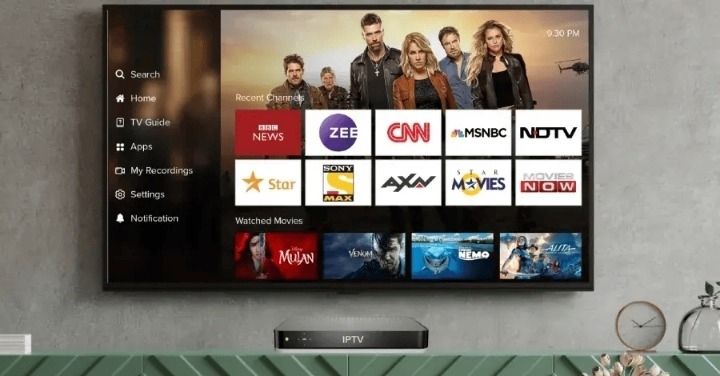
Step 6: Upload Your Playlist or Portal Link
Go to your IPTV provider’s official website and log in to your account.
Enter the MAC Address or Xtream Codes and upload your M3U playlist or portal URL provided by your IPTV service.
Save the settings, then wait a few minutes for synchronization.
Step 7: Restart and Enjoy Streaming
Restart your IPTV app.
Now you can explore live channels, on-demand movies, and shows directly from your Samsung Smart TV.
Each app — whether b1g Player, Star Share, or IPTV Smarters Pro — will display your content list differently, but the process remains simple.
Troubleshooting Tips
- If the app doesn’t load, restart your Smart TV or reinstall the app.
- Make sure your Wi-Fi connection is strong and stable.
- Some IPTV apps require a small activation fee (like Smart IPTV).
- Always use legal IPTV providers to avoid content issues.
- Clear cache or update the app if channels stop playing.
Why Choose These IPTV Apps
- b1g Player: Best for fast, buffer-free streaming. It’s ideal for users who prefer a simple, direct interface.
- Star Share: Lightweight and easy to set up, great for beginners or older TV models.
- IPTV Smarters Pro: Perfect for advanced users who want multi-device access, parental control, and live EPG.
Each app works efficiently with both M3U links and Xtream Codes, depending on your IPTV panel or service.
FAQs
Q1: Can I install IPTV apps directly from the Samsung App Store?
Yes, apps like Smart IPTV and IPTV Smarters Pro are available in certain regions through the Samsung Smart Hub.
Q2: What if the IPTV app isn’t available in my country?
You can sideload the APK file using a USB drive or the Samsung browser.
Q3: Which IPTV app is best for Samsung Smart TVs?
IPTV Smarters Pro is the most reliable, while b1g Player and Star Share are excellent alternatives for smoother playback.
Q4: Why is my IPTV app buffering?
This usually happens due to slow internet speed or server overload. Ensure at least 25 Mbps speed for HD streaming.
Q5: Can I use multiple IPTV apps at once?
Yes, you can install and use multiple IPTV apps like Smart IPTV, Star Share, and b1g Player to compare performance.

My name is Stella Rose. I am an IPTV specialist with over 10 years of professional experience in the streaming industry. I learned IPTV from top experts in a reputed office and also hold a diploma in IPTV & digital streaming technologies.
Now, I share my knowledge by writing articles and guides on NestNets.com, helping people understand IPTV subscriptions, Firestick setup, troubleshooting, and the latest streaming solutions.