
5 Simple Steps How to Install TV Channels on IPTV
![An informational infographic showing different devices and apps that connect to a TV screen displaying a media player interface. The surrounding elements include app icons like 'BIG PLAYER' and 'IPTV SMARTERS PRO,' and various device silhouettes. This graphic relates to the process of [How to Install TV Channels on IPTV] and connecting media sources to a central television display.](https://nestnets.com/wp-content/uploads/2025/11/How-to-Install-TV-Channels-on-IPTV--1200x736.jpg)
How to install TV channels on IPTV: 1. Open IPTV app 2. Add playlist URL 3. Upload M3U file 4. Refresh list 5. Enjoy live channels.
How to Install TV Channels on IPTV
If you’ve recently started using IPTV and want to enjoy your favorite live TV, sports, and movies, the first thing you need to learn is how to install TV channels on IPTV.
Don’t worry—it’s simple! Whether you’re using B1G Player, IPTV Smarters Pro, or Star Share, the setup process is almost the same across all devices.
Quick Setup Overview
| Requirement | Details |
|---|---|
| IPTV App | B1G Player, IPTV Smarters Pro, Star Share |
| Subscription Info | Xtream Codes — input the server URL, then your username and password. |
| Internet Speed | 10 Mbps or higher for smooth streaming |
| Supported Devices | Smart TV, Android Box, Firestick, or Mobile |
| Optional Feature | EPG for live program guides |
Step 1: Install an IPTV App
First, install your preferred IPTV app on your device:
- B1G Player – Best for fast loading and stability.
- IPTV Smarters Pro – Offers advanced features like multi-screen and EPG.
- Star Share – Lightweight and works well on Smart TVs.
You can download these apps directly from the App Store, Google Play Store, or install via APK if using Android or Firestick.
Step 2: Open the App and Choose Login Type
Once installed, open your IPTV app. You’ll see two login options:
- M3U URL – Enter your playlist link.
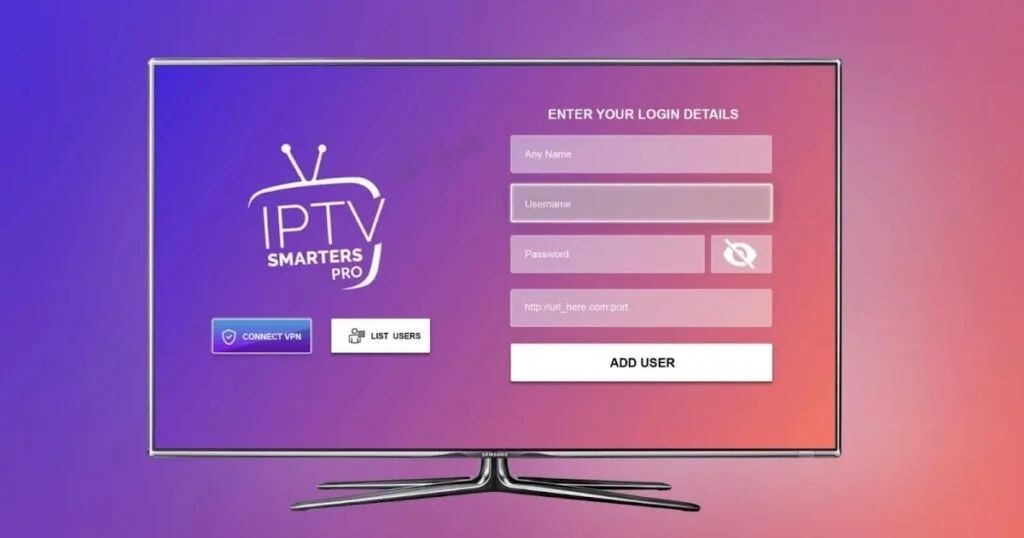
- Set up the Xtream Codes API by entering the server link, username, and password.
Your IPTV provider will give you one of these options. Select the one you received and continue.
Step 3: Enter IPTV Login Details
Copy and paste your login information:
- Server URL: Provided by your IPTV provider
- Username: Your unique login name
- Password: Provided in your subscription email
After entering details, click “Add User” or “Login” depending on your app.
Step 4: Let Channels Load
Once logged in, the app will automatically load your channel list, movies, and series.
This process might take a few moments based on your internet speed.
You’ll then see categories like:
- Live TV
- Movies / Series
- Sports / Kids / News
Step 5: Start Watching and Customize
Now you’re ready to watch!
You can also customize your viewing experience:
- Use EPG to view live schedules.
- Create a Favorites List for quick access.
- Adjust Player Settings for better quality.
If you’re using B1G Player, you’ll notice smooth playback even on slower connections.
IPTV Smarters Pro lets you add multiple profiles, while Star Share keeps the interface simple for quick navigation.
Tips for a Better IPTV Experience
- Always use a stable internet connection for HD channels.
- If channels don’t load, refresh your playlist or restart the app.
- Use a VPN for added privacy and to avoid region restrictions.
- Check your app’s update section for the latest version.
FAQs
Q1: Which IPTV app is easiest to use?
Star Share and B1G Player are simplest for beginners.
Q2: Can I use IPTV on my Smart TV?
Yes. Most Smart TVs support IPTV apps directly from the app store.
Q3: Why aren’t my channels loading?
It may be due to poor internet speed or an expired subscription link.
Q4: Do I need to update the playlist manually?
Some apps auto-update; others require you to refresh manually.
Q5: Can I watch IPTV without a box?
Yes. You can install IPTV apps directly on your Smart TV or mobile device.

My name is Stella Rose. I am an IPTV specialist with over 10 years of professional experience in the streaming industry. I learned IPTV from top experts in a reputed office and also hold a diploma in IPTV & digital streaming technologies.
Now, I share my knowledge by writing articles and guides on NestNets.com, helping people understand IPTV subscriptions, Firestick setup, troubleshooting, and the latest streaming solutions.