
9 Useful Shortcut Keys for Firestick Remote IPTV

Shortcut keys for Firestick remote IPTV: 1. Home button 2. Menu access 3. Volume control 4. Fast forward 5. Rewind 6. Voice search 7. Settings 8. App switch 9. Power control.
Shortcut Keys for Firestick Remote IPTV
If you use IPTV on a Firestick, you already know how smooth and powerful streaming can be. But many users don’t realize there are hidden shortcut keys built right into the Firestick remote.
These shortcuts can make your IPTV experience faster and easier. You can restart your Firestick, fix display problems, or open system menus in seconds — without going deep into settings.
In this guide, you’ll learn the 9 most useful shortcut keys for the Firestick remote when using IPTV, what each shortcut does, and how to use them safely.
Why Shortcut Keys Matter for IPTV Users
When you’re watching IPTV, you often need to switch channels, adjust video, or fix small issues. Doing this through menus takes time. Shortcut keys let you perform these actions instantly with just two buttons.
With these shortcuts, you can:
- Spend less time navigating menus
- Fix small technical issues quickly
- Control IPTV more efficiently
- Make your Firestick experience smoother
Once you start using these shortcuts, your Firestick remote will feel more powerful and professional.
Firestick Remote Shortcuts for IPTV Users
| Shortcut Key | Main Function | When to Use It | Quick Tip |
|---|---|---|---|
| Select + Play/Pause | Instantly restarts Firestick | IPTV app freezes or lags | Faster than restarting manually |
| Up + Rewind | Opens video resolution settings | Screen flickers or looks blurry | Switch to 1080p or Auto for best display |
| Home (hold 5 sec) | Opens quick access menu | Need mirroring or sleep mode fast | Use instead of going into full settings |
| Back + Menu + Left | Re-pairs remote | Remote stops responding | Keep close to Firestick while resetting |
| Select (hold 10 sec) | Starts pairing mode | New or replacement remote | LED blinks when pairing starts |
| Microphone (hold) | Activates Alexa voice search | Want to open a channel or app quickly | Say “Open IPTV Smarters” or app name |
| Guide (TV icon) | Opens IPTV channel guide (EPG) | Checking what’s playing next | Works on most IPTV players |
| Play/Pause (double press) | Pauses or resumes playback | During live TV or movies | Great for quick control |
| Volume / Mute | Adjusts or mutes sound | While streaming IPTV | Works if HDMI-CEC is enabled |
Why Shortcut Keys Matter
When you watch IPTV, you often switch channels, adjust video, or fix problems. Doing this with regular navigation takes time. Shortcut keys let you do it instantly.
With these shortcuts, you can:
- Control IPTV more efficiently
- Solve small technical problems yourself
- Access menus or restart the device faster
- Make your Firestick experience smoother overall
How to Use These Shortcuts
- Hold the two buttons listed for each shortcut at the same time.
- Keep holding for about 8–10 seconds.
- Wait for the Firestick to respond — some actions take a moment.
- Ensure remote batteries are charged.
- Keep your Firestick software updated for best results.
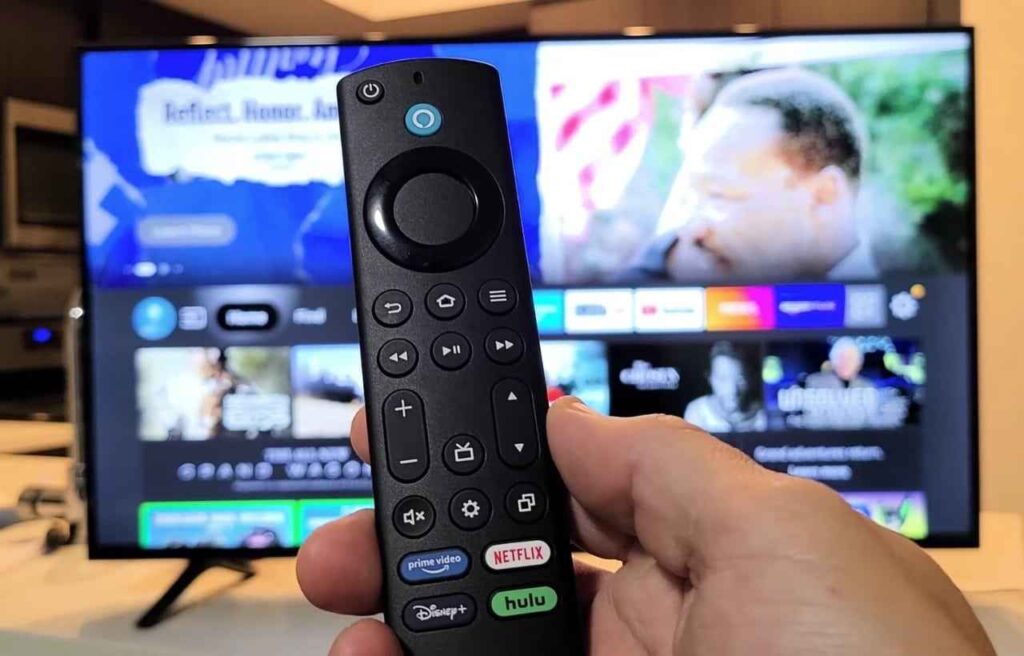
Try them one by one while using your IPTV app. Soon, you’ll remember your favorites by heart.
Tips for Better IPTV Performance
- Use strong Wi-Fi to reduce buffering.
- Keep your Firestick and IPTV app updated.
- If IPTV freezes, use Select + Play/Pause to restart quickly.
- Use Up + Rewind to fix display or color issues.
- If your channels buffer, try using a quality VPN to stabilize streams.
Are These Shortcuts Safe?
Yes — these are official Firestick shortcuts. They’re built by Amazon for quick access to important system functions.
They don’t harm your IPTV apps or delete data. They just save time and help fix small problems without doing a full reset.
FAQs
1. Do these shortcuts work on all Firesticks?
Yes. They work on Firestick Lite, 4K, and Fire TV Cube models. Some older remotes may not include all buttons.
2. Can I use these shortcuts in any IPTV app?
Yes. They work at system level, so they function across IPTV Smarters, TiviMate, B1G Player, and others.
3. What if a shortcut doesn’t respond?
Restart your Firestick, check remote batteries, or update your firmware.
4. Can I change or customize these shortcuts?
Not directly, though some advanced remapping apps can reassign buttons.
5. Are these shortcuts safe for non-IPTV apps?
Yes. They work perfectly with Netflix, Prime Video, and YouTube as well.

My name is Stella Rose. I am an IPTV specialist with over 10 years of professional experience in the streaming industry. I learned IPTV from top experts in a reputed office and also hold a diploma in IPTV & digital streaming technologies.
Now, I share my knowledge by writing articles and guides on NestNets.com, helping people understand IPTV subscriptions, Firestick setup, troubleshooting, and the latest streaming solutions.