
5 Easy Steps: How to Allow Downloader on Firestick
How to Allow Downloader on Firestick: 1. Go to Settings 2. Enable Developer Options 3. Turn on Unknown Apps 4. Allow Downloader 5. Start Installing.
How to Allow Downloader on Firestick
If you’re trying to install apps that aren’t available on the Amazon Appstore, you’ll first need to allow Downloader on Firestick. Downloader is one of the most trusted tools for installing third-party apps safely. However, before using it, you must enable permission for “Install Unknown Apps.”
This guide explains how to allow Downloader on Firestick step-by-step, so you can install your favorite apps easily.
What Is the Downloader App?
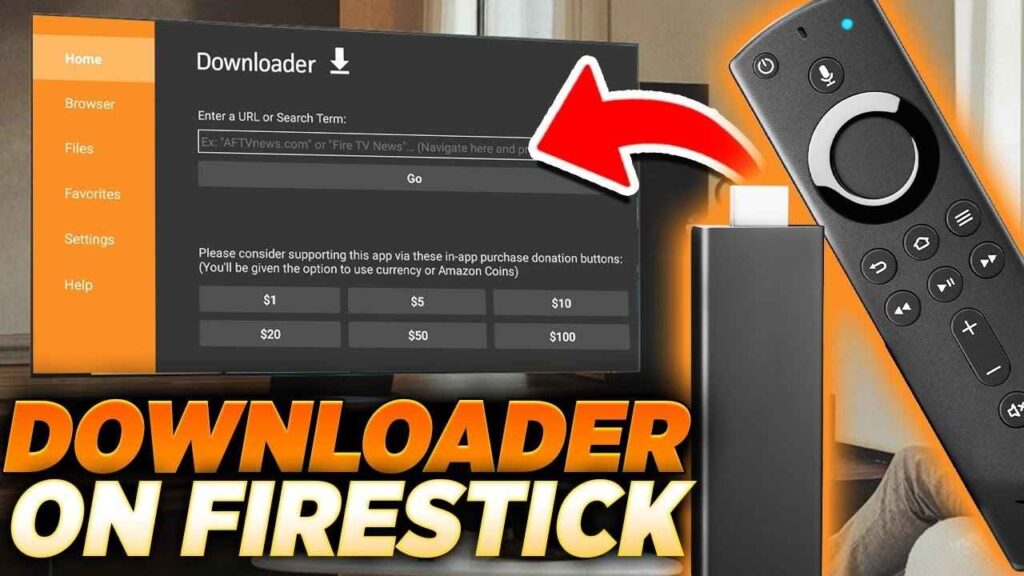
Downloader is a free and secure app that lets you download APK files or install third-party applications directly onto your Firestick.
It’s especially popular for IPTV apps, media players, and other apps that are not listed on the official Amazon Appstore.
Once permissions are granted, you can install apps like b1g player, IPTV Smarters Pro, or TiviMate without restrictions.
Quick Setup Overview for Downloader on Firestick
| Step | Action | What It Does | Why It’s Important |
|---|---|---|---|
| 1 | Go to Settings | Opens device settings menu | Lets you access developer options |
| 2 | Select My Fire TV | Navigates to device management | Needed to reach developer options |
| 3 | Open Developer Options | Reveals hidden app install permissions | Allows access to security settings |
| 4 | Choose Install Unknown Apps | Displays list of eligible apps | Lets you enable Downloader permission |
| 5 | Turn ON Downloader | Grants installation rights | Allows safe installation of APK files |
Step 1: Go to Firestick Settings
From your Firestick home screen, scroll to the right and select Settings (gear icon).
This section contains all the controls for your device’s security and privacy.
Step 2: Open ‘My Fire TV’
Go to My Fire TV, or choose Device & Software based on your Firestick version.
You’ll find important developer settings here.
Step 3: Enable Developer Options
Inside My Fire TV, open Developer Options.
If you don’t see it, go to About → Fire TV Stick → click 7 times to unlock it.
This trick reveals hidden developer settings.
Step 4: Turn ON ‘Install Unknown Apps’
Next, select Install Unknown Apps.
You’ll now see a list of apps that can install files from outside Amazon’s Appstore.
Step 5: Allow Downloader
Find Downloader and switch it ON.
This allows Downloader to install APKs safely on your Firestick — enabling access to apps like IPTV Smarters Pro, TiviMate, and b1g player.
Why You Need to Allow Downloader
- To install third-party streaming apps safely.
- To use IPTV apps that aren’t available in the Appstore.
- To sideload apps from trusted developers.
- To customize your Firestick with more content and features.
Safety Tips for Using Downloader
- Only download from verified URLs to avoid malware.
- Use a VPN for privacy while sideloading or streaming.
- Disable unknown sources after installation if not needed.
- Keep your Firestick updated for better security.
FAQs
Q1: Is Downloader safe to use on Firestick?
Yes. Downloader is officially listed in the Amazon Appstore and is completely safe when used with trusted sources.
Q2: Do I need a VPN while using Downloader?
It’s highly recommended. A VPN protects your privacy and keeps your data secure while streaming or downloading.
Q3: Why can’t I find Developer Options on my Firestick?
You may need to unlock it manually by clicking your device name seven times under the About section.

My name is Stella Rose. I am an IPTV specialist with over 10 years of professional experience in the streaming industry. I learned IPTV from top experts in a reputed office and also hold a diploma in IPTV & digital streaming technologies.
Now, I share my knowledge by writing articles and guides on NestNets.com, helping people understand IPTV subscriptions, Firestick setup, troubleshooting, and the latest streaming solutions.